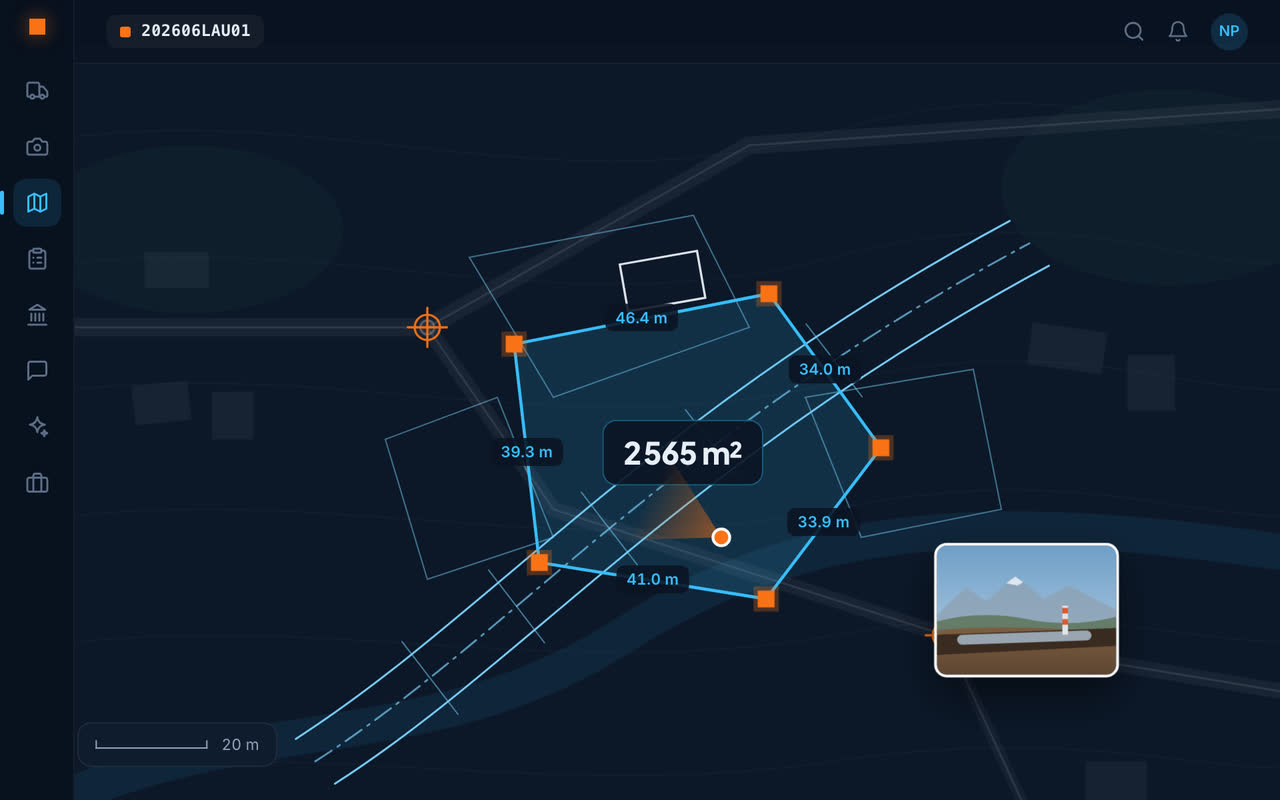
LV95 and LV03 recognised
Upload a DXF or DWG file: LV95 or LV03 coordinates are recognised and the plan sits on the map. AutoCAD's DWG format, which a browser cannot read, is converted on upload; both files are kept side by side. You don't need AutoCAD to look at a plan.
What the site map shows
Stacked plans
Several plans, stacked in list order; each one's transparency can be adjusted to read the aerial photo underneath.
Orthophotos
A surveyor's orthophoto fits itself, from its world file or the DWG that comes with it.
Located photos
Every site photo where it was taken, with its viewing direction.
Perimeters and areas
Project perimeters dashed, areas calculated, trees at the real diameter of their crown.
Sections set aside
Sections, profiles and title blocks drawn next to the terrain are set aside in one click, without touching the plan.
For the site as for the office
On site, the current plan is in your pocket, with the photos on it. At the office, the map exports as an image, ready to attach to a report.
Frequently asked questions
How can I view a DWG plan without AutoCAD?
Upload it to Geovio: the DWG is converted on upload and shown on the map, in place if it carries Swiss LV95 or LV03 coordinates.
Does Geovio recognise LV95 coordinates?
Yes, LV95 and LV03: a Swiss surveyor's plan places itself on the map with no manual fitting.
Can several plans and an orthophoto be overlaid?
Yes: plans stack in list order with adjustable transparency, and the orthophoto fits itself from its world file or the DWG.